
-
Step 1: Select the desired ‘Date Range’, ‘Currency’ and ‘Weight Unit’.
The default settings for currency and weight unit can be adjusted via ‘My Profile’.
By selecting a longer period, it is easier to see whether a particular commodity is currently relatively expensive or cheap. With the provided default periods, it is easy to switch between time periods. The commodity prices are then displayed in the selected weight unit and currency. You are able to change the currency easily by typing the desired currency in the search field.

- Step 2: Use the 'Add Commodities' button to add commodities to the chart

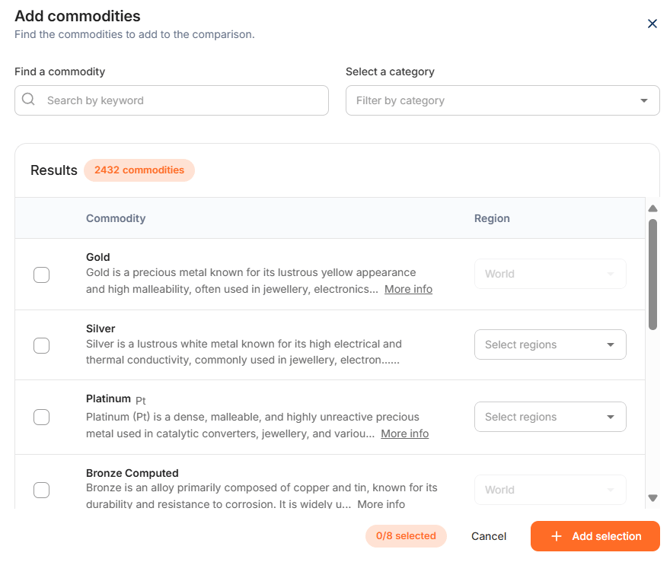
- Type (part of) the commodities name in the search field ‘Search by keyword’. The list of (possible) commodities is directly filtered based on the search term(s) entered. You can then select the desired commodity from the desired region. The country or region of price origin of the commodity is displayed in brackets after the name.
- Another option is to scroll through the list of commodities. This can be done for the entire comprehensive list of 4,000 commodities, but it is also possible to filter through the available categories. By clicking on the ‘Filter by Category’ window, a drop-down menu with the categories appears.
- A combination of both search methods is also possible. This means that you can combine keyword search with categorization search
When you have found the preferred commodity, you can select the preferred region. If there is only one region stated in light grey, only that region is available. By clicking on the checkbox before that commodity, you automatically select that region. However, if there are more regions available, you will see the dropdown with 'Select Region'. If you click on the dropdown, you can select one or more regions. If you click the checkbox before the commodity, all regions are selected. You can then still delete them if needed.
If you are in doubt whether you have selected the right commodity or if you want more information about the commodity in question, you can move the mouse over the commodity. You can click on 'More info' with a link with more explanation about the commodity. There is also a further description of the commodity below the name in light gray
Multiple commodities (up to 8) can be selected before returning to the chart. The selected commodities are marked with a checkbox. Even when scrolling through the list, the previously selected commodities remain selected.