
From the menu, go to 'Reports' and ´Commodity Spend' to get an insight into the total commodity volume and price development within a given period for the products listed in WTP.
Another way to get into the 'Commodity Spend' is via the 'Cockpit' and then clicking on
'See more' in the 'Commodity usage' chart.
Date Range and Currency
Select a period ('Date Range') and the desired currency ('Currency') to gain insight into the price change of various commodities during a period.
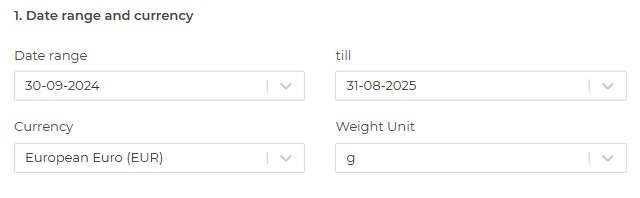
Limit selections of products
To arrive at the desired commodity expenditure report, it is necessary to make a selection. The selection can be made using some filters.
- Unfinished Product; if 'Include' is
selected for this option, products marked as incomplete will also be marked.
Selecting 'Exclude' will omit these products - Suppliers; door te filteren op één of meerdere leverancier(s), worden de waardes
getoond van de gekozen leverancier(s). Zo zie je per leverancier een gewogen
gemiddelde, grondstof stijging of daling binnen de door jou gekozen periode. - Tags; 'Tags' (labels) can also be filtered. By selecting one or more 'Tags', the
commodity spend report is built based on these criteria. - Products; it is possible to select from all products generated in the WTP application.
Thus, you can still create a 'Commodity spend' report for a specific selection of
various products - Users: Here you can select from which WTP user you want to see the Commodity
Spend Report. - Current user: by clicking this button, you select only the products created by
yourself for the Commodity Spend Report.
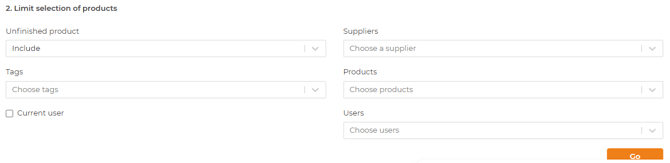
The moment you configure on preferred filter(s), the commodity expenditure report is
automatically generated.
You also have the option to save the report in Pdf. To do so, click the ´Print Pdf´ button. Next, in the pop-up window you can choose which information you want to print and/or save in the Pdf.
Quick overview of all commodities in use

In addition to the total commodity weight purchased indirectly, the third and fourth
columns (Value) show the total commodity spend on the two previously selected dates. In
the fifth column (Difference), you will find the absolute difference in commodity spend. The
sixth column (Difference in %), shows the percentage difference in commodity spend.
The last line of the table shows the totals. This line moves along with your image when
scrolling and thus remains in view at all times.
This way, the impact of the cost price change for a specific range can be analysed. For
example, if you choose all products from a specific supplier, you will be able to see, at the
bottom of the screen, the raw material prices in this specific product mix purchased
indirectly by your organisation. This is valuable knowledge before you enter into
negotiations with this supplier(s). That is because it could very well be that the supplier has
indeed suffered from rising raw material prices, but that this has virtually no effect on the
products in the mix that your organisation buys from this supplier.
By clicking on the plus symbol, an overview of all articles containing the respective raw
material will appear. Clicking on a product's name will take you directly to the relevant
product.
