Go to 'Cost Models' in the menu bar and select 'Products'. An overview of all products previously created within your organisation will then appear.
If you are the first from your organisation to log in and/or create a product, the list might still be empty. In that case, you may find only DEMO products in the 'Product List', or only a few items from a previous pilot phase might be visible.
There are two ways to add new products to the tool:
1. Collectively, in larger quantities. This can be done via the Import function. For more
information on this function, please refer to your Customer Succes Manager.
2. Individually, one by one. This can be done via the 'Create new product' button.
Creating products will be explained in more detail below.
Steps to create a cost model:
- Give your new cost model a name and click next
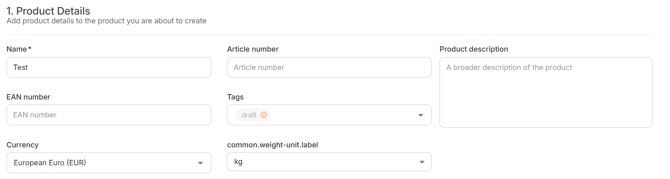
- Enter the product details. Most of them are optional, but will help you to structure your cost models and analyse them in the report functions. In order to save the cost model, entering a name is mandatory.
- Add the supplier details. All domains here are optional. However, we do recommend to add your own historical buying prices on the right hand side. Once you add them for different dates with the corresponding quantity, you can use them later on as a comparison to the should-cost price.
Please note; All entered prices are fully confidential and will not be used to enrich data in WTP.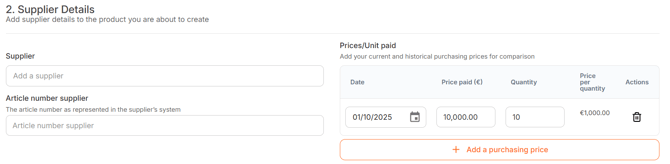
- Enter the product composition.
First, select the right Industry Cost Profile. Click on the orange button '+ Add industry cost profile' and search for the right industry by entering a keyword. After finding the right industry, select the region or regions you want to see. After doing so, you can add the chosen Industry Cost Profiles by clicking on the orange button.
- Enter the direct materials.
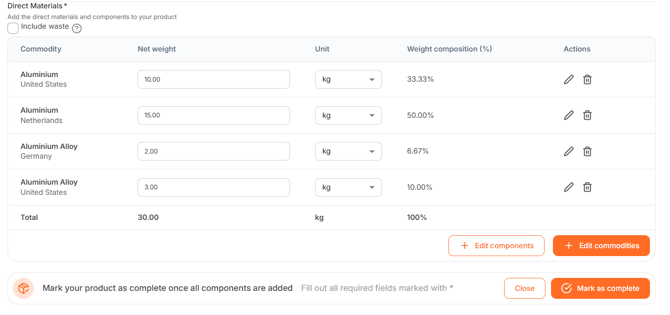
Add all direct materials by clicking on the orange button '+ Add commodities'. You can find the commodities by searching with a keyword or scrolling though a category. Select the right region(s) and click on '+ Update selection'.

- You will find all selected commodities in the table. Please enter the Net weight of all commodities. Take the ratios of the raw materials into account, that go into one product. By doing this, you will create the Bill of Material (BOM) for this product.
- If the information on the BOM is limited, please enter your best estimate. If you need help doing so, please review the article 'How do I know the Bill of Material?'
- You are able to adjust the weight unit per commodity.
- After creating the BOM, the weight composition should be a 100%. You are then able to mark your product as complete.