
Creating a 'Market Report' is possible under the 'Reports' button in the menu bar. Then
choose 'Market Report'.
Date Range and Currency
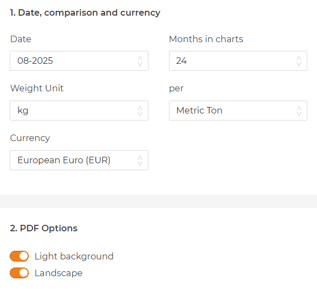
First of all, you have to select a start date in the 'Date Range'. In addition, you can select your desired 'month(s) ago' of your 'Market Report'. Here you have a choice of several months with a maximum of two years. The number of months you select here ultimately determines the length of the commodity charts in the market report. The 'Currency'
determines the currency in which the currency and/or commodity charts are displayed.
In the following step, the following choices can be made regarding the Pdf printout of the 'market report'.
- Dark background versus Light background
- Portrait versus Landscape
Add a commodity and/or currency
Finally, in the last step, you can add your desired commodities and currencies and set up the final market report as you wish.
Add currency
By clicking the 'Add currency' button, it is possible to add various exchange rates to the
market report. The currencies always appear on the first pages of the market report. These
will therefore always appear before the commodities.
By clicking 'Add currency' several times, several lines will be displayed. You can use all these lines to present different exchange rates in your market report.
By clicking on the currency that is to be replaced in a certain line, other currencies can be
selected. Here you again have the option to choose from the 46 existing currencies in WTP.
Through this function, it is therefore possible to include price fluctuations of a currency
against another currency in the market report.

Add commodity
Commodities can be added by clicking the 'Add commodity' button. A pop-up screen will
then be presented where a choice can be made from the entire list of commodities currently
available in the WTP application. To find a particular commodity, three ways of searching
are possible:
- A search can be made by typing a (part) of commodity name in the 'Search a
Commodity' search field. The list of (possible) commodities is then immediately
filtered. You then select the desired commodity, from a desired region. The region from which the commodity price is displayed is shown in brackets behind the commodity name. De regio vanwaar de grondstofprijs getoond wordt, wordt achter de grondstofnaam tussenhaakjes weergegeven. - Another option is to scroll through the list of commodities. This can be done through
the entire commodity list (about 2,300 commodities), but it is also possible to filter
by the available categories. Clicking on the 'Commodity Category' window unfolds a
drop down menu containing 52 categories. - A combination of both search methods is also possible. This means you can combine searching by keyword(s) with searching by categorisation.
Are you unsure whether you have chosen the right commodity or do you want more information on the commodity in question?
Then hover your mouse over the commodity in question. A link to Wikipedia will then appear
with more information about the commodity in question.
In addition, a further description of the commodity (price) is displayed at the bottom of the
screen.

You may select multiple commodities before returning to the chart. The selected
commodities will be marked with green shading. It is advisable to think carefully about the
classification of the commodities before making a market report. If you select ten
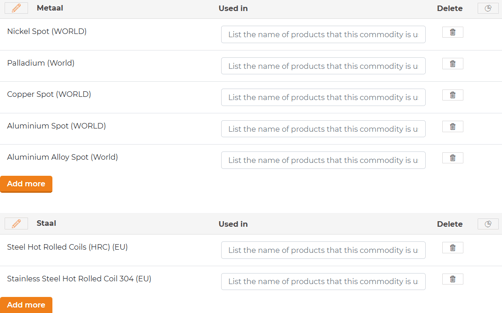
commodities, these ten commodities will automatically be placed in 'one group'.
By clicking 'Add commodity' again, you will automatically create a second group.
These groups relate to the format of the market report. In this manner, it is possible to
create a 'group' per commodity category or per supplier in the market report.
Once you have created various commodity groups, you then have the opportunity to perfect
and/or format the market report. WTP offers various options for this:
- Customise a group name; it is possible to customise the group name of a commodity group. To do so, click the icon next to the relevant commodity group. Once you have entered the desired group name, just click the confirmation icon. This group name will eventually also be presented with the relevant group in the market report.

- Adding a remark; after every commodity, enumeration of products and/or enumeration of suppliers, it is possible to add a remark to what this commodity refers to. With this function, please note that the remark is always preceded by the following sentence in the market report: ''Product uses {name commodity] as
its key material:". - Removing commodities; by clicking on the bin icon, you have the
option to remove a particular commodity from the relevant group and/or
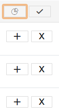
market report. - Merge commodities into one chart; by clicking the icon, you have
the option to merge commodities into one chart. That means you
can see multiple commodities in one commodity chart. To do so,
click on the plus sign on the right side of the page.
By clicking on the cross, you can bring the commodity back to one
(standalone) chart.
- Add more; clicking this button allows you to add new commodities
to a particular commodity group. Please note that the newest
commodities in the group are always displayed last in the report
and/or list.
Save as pre-set
If all desired exchange rates and commodities have been added and correctly classified, the market report can be saved by clicking the 'Save preset' button.
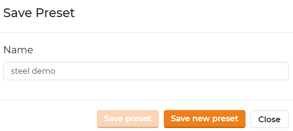
In the pop-up screen shown on your screen, you have the option/task to give the market report a name. You can then save the market report using the 'Save new preset' button. If you make a change to an existing market report and want to save it, use the 'Save preset' button.
By clicking the 'Remove all selected items' button, all selected currencies and commodities are removed from the overview.