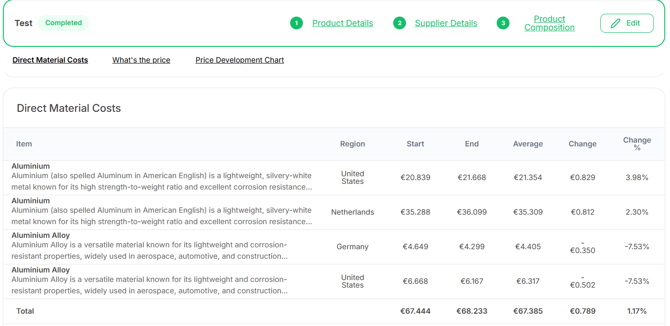
Once all fields have been filled in and you have clicked on 'Mark as complete', a green bar will appear at the top where you can see all completed steps. This is also where you can edit them if needed.
Directly below, you can see the Direct Material Cost. After selecting the preferred date range and currency, you are able to review the table:
- Item: contains the name of the commodity, a component and/or the self-added
price elements. - Region: The selected region of that commodity
- Start: The initial value of the price at the chosen starting point
- End: The final value of the price at the chosen end point
- Average: The average value over the selected period
- Change: The absolute difference in value between the start and end points
- Change in %: The percentage difference between the start and end points
Direct Material Chart
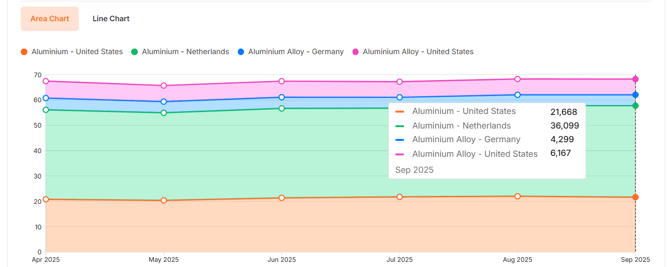
Click on 'Direct Material Chart' to review the total price over time of the commodities. You can choose between an Area chart or a Line chart.
This will provide a more visual representation of the product composition, as well as the trends of the commodities.
What's the price
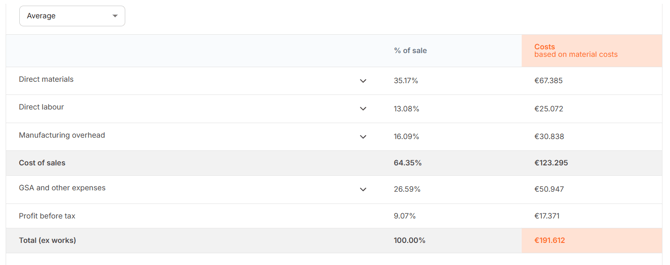
The review the full should cost model, click on 'What's the price'. You will find the table of the should cost price.
At the top, you can select which kind of price you require to see. The default is set on average.
In the table, you can click open all cost drivers. These are the default cost drivers from any Industry Cost Profile, but the corresponding percentages are determined by the chosen industry, country and commodities.
In the most right column, is where you find the cost breakdown of the product with the should cost price at the bottom (Total).
Price Discipline
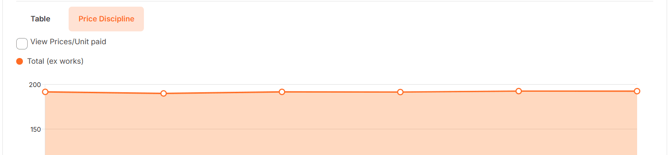
To review the trend of the entire product, click on 'Price Discipline'. If you have entered your own historical buying prices before, you can click on 'View Prices/Unit paid'. The line will pop up in the graph so you can visually compare the trends.