
Copy a cost model
To copy a cost model, open Your Product Cost Model Library. The library displays alla vailable products. To copy a product, click the Copy button on the right-hand side. In this screenshot you will find the button outlined in red.
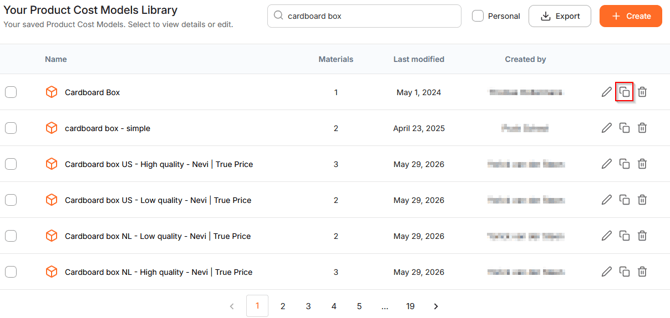
A copy of the product is added to the list. The copied product keeps the original name with (Copy 1) added to the end. If you create multiple copies, then keep clicking on the button and more products will be added with consecutive numbers.
Export and Compare cost models
Select the products you want to compare by checking the boxes next to them. When you have selected the products, click on the Export button.
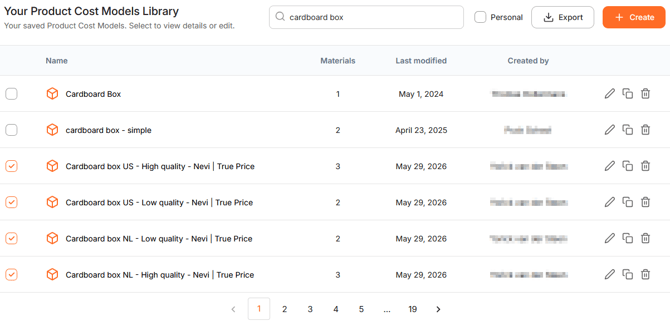
A pop-up displays the number of selected products. If the selectino is correct, you can click on Confirm.
After confirming your selection, a new pop-up will appear. Here you can choose the export settings.
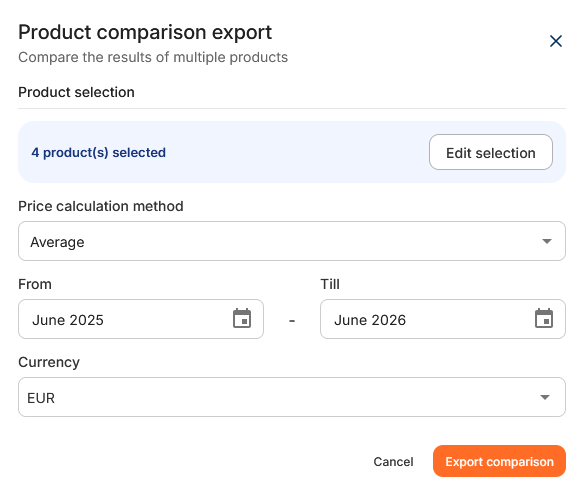
After choosing the desired settings, click Export comparison. The Excel file is downloaded to your default download location, depending on your browser settings.You can use the exported data to compare products, analyse commodities or create your own charts outside WTP.
Note that if you don't see any pop-up, your browser may be blocking pop-ups. Enable pop-ups for WTP and tye again.