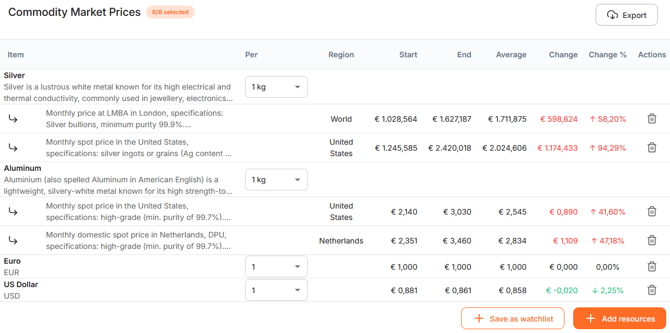
-
Step 1: Select the desired ‘Date Range’, ‘Currency’ and ‘Weight Unit’.
You can change the default currency and weight unit in ‘My Profile’.
Selecting a longer date range makes it easier to identify price trends and see whether a commodity is currently relatively expensive or inexpensive. Use the predefined date ranges to switch quickly between different periods. The commodity prices are then displayed in the selected weight unit and currency. You can also change the currency by typing its name into the search field.

- Step 2: Use the 'Add resources' button to add commodities or other resources to the chart.

After clicking the button, a pop-up window appears.
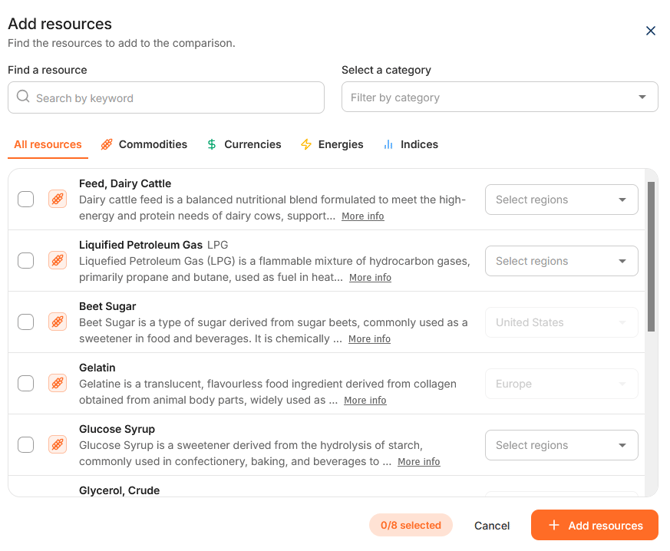
There are several ways to find a resource.
- Type (part of) the commodity name in the search field ‘Search by keyword’. The list is filtered automatically as you type. You can then select the desired commodity from the desired region. The country or region of price origin of the commodity is displayed in brackets after the name.
- Another option is to scroll through the list of commodities. This can be done for the entire comprehensive list of more than 5,000 commodities. Because the list containcs more than 5,000 resources, we recommend using the search or filters instead.
- It is also possible to filter through the available categories. By clicking on the ‘Filter by Category’ window, a drop-down menu with the categories appears. After selecting a category, the list is narrowed down.
- A different way of filtering is by clicking on the buttons 'Commodities', 'Currencies', 'Energies' or 'Indices'. Only the one you select will be shown in the list.
- A combination of different search methods is also possible. This means that you can combine keyword search with categorization search and filtering.
When you have found your commodity, you can select the preferred region. If there is only one region available, it is shown in light grey and selected automatically when you tick the checkbox. However, if there are more regions available, you will see the dropdown with 'Select Region'. If you click on the dropdown, you can select one or more regions. If you click the checkbox before the commodity, all regions are selected. Click the checkbox again to deselect all regions or manually remove a single one by deleting them in the dropdown menu.
If you are in doubt whether you have selected the right commodity or if you want more information about the commodity in question, you can hover over the commodity. Click 'More info' to open additional information about the commodity. A short description is displayed below the commodity name in light grey.
Multiple commodities (up to 8) can be selected before returning to the chart. Selected commodities are indicated by a checked checkbox. Even when scrolling through the list or changing your search entry, the previously selected commodities remain selected.
When you have selected all required resources, click '+Add resources' to close the search modal. The 'Commodity Market Prices' table is updated with your selected resources. You can reopen the pop-up window at any time by clicking ´Add resouces´.