
WTP has a built-in AI tool that helps you create Cost Models. AI suggestions are intended as a starting point. Always review and validate the suggested product details before completing the Cost Model.
Navigate to Cost Models > Products. The Product Cost Models Library displays all products created within your organisation. If you are the first from your organisation to log in and/or create a product, the library might still be empty. In that case, you may find only DEMO products or a few items from a previous pilot phase.
Click + Create to start creating a new cost model. A pop-up window appears where you can open the Create with AI suggestions field.
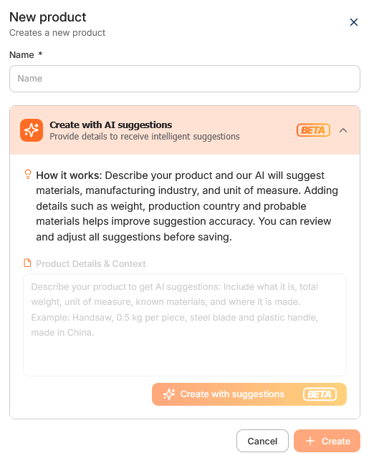
Provide as much information as possible, such as the product description, manufacturing location, weight, materials, and industry. The more information you provide, the more accurate the AI suggestions are likely to be. After entering the data, click ´Create with suggestions´.
Review the product details
-
Accept or reject the suggested product information.
-
Check the currency, weight unit and unit of measure.
Review the supplier details
Adding supplier details is optional. We recommend adding historical purchase prices so you can compare them with the calculated should-cost. Purchase prices remain confidential and are not used to enrich WTP data.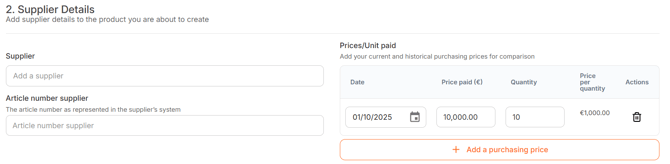
Review the Industry Cost Profile
- Accept or reject the suggested Industry Cost Profile.
- Verify that the selected country is correct.
Review the Bill of Material
- Accept or reject each suggested commodity.
- Adjust weights and waste percentages where required.
- Add additional commodities, components, or custom materials if needed.
At this stage, finalise the Bill of Material (BOM). If you need help doing so, please review the article 'How do I know the Bill of Material?'.
Before completing the product, verify that the total material weight equals 100%.
To learn how to interpret the Cost Model results, see the related Cost Model articles or contact your Customer Success Manager.
If available in your licence, you can also add a Freight Lane to include transportation costs in the Cost Model.