
Under 'Cost Models', select 'Freight Lanes'.
This page displays your saved freight lanes. Click '+ Add new freight lane' to create a new freight lane. A Freight Lane allows you to compare your transportation costs with current market rates for a specific route.
The following page opens. At the top of the page, select the mode of transport: Air Freight, Road EMEA, Road N. America or Sea Freight.
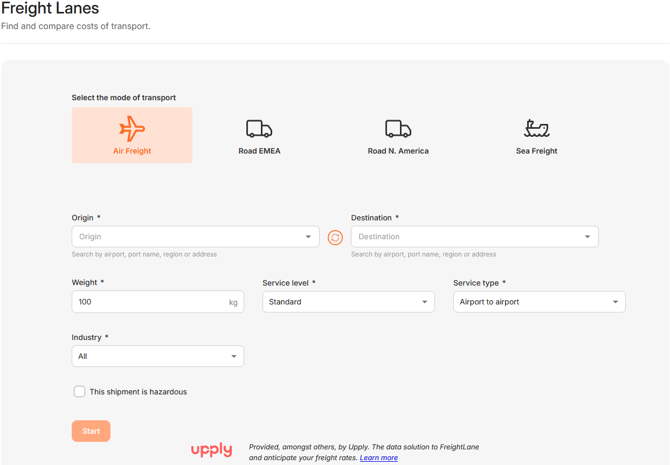
Next, enter the place of origin and destination. You can specify an airport, seaport, country, region or a specific address.
Depending on the selected transport mode, additional fields are available. This can be:
Air freight
- Weight (kg)
- Service level: Standard or Express
- Service type: door-to-door or airport-to-airport
- Industry
Road freight (EMEA or N. America)
- Shipment size: full truckload or the quantity in units and weight (kg)
- Vehicle type
- Type of goods
- Contract type
- Include or exclude fuel costs
Sea freight
- Include or exclude Terminal Handling Charges (THC)
- Service type: door or port based
- Number of containers
- Unit: container type
For all transportation modes, you can select This shipment is hazardous if applicable. This may affect the calculated freight rate.
After completing all required fields, click 'Start'. WTP displays the Freight Results.
To learn how to interpret the results, see 'How do I interpret a Freight Lane?'